Last updated 2 weeks ago
2 min read

Change the payment date on a Bill

This guide shows you how to change the payment date on a bill that is already registered as paid.


The payment date is the date on which you have registered that you have paid your supplier.

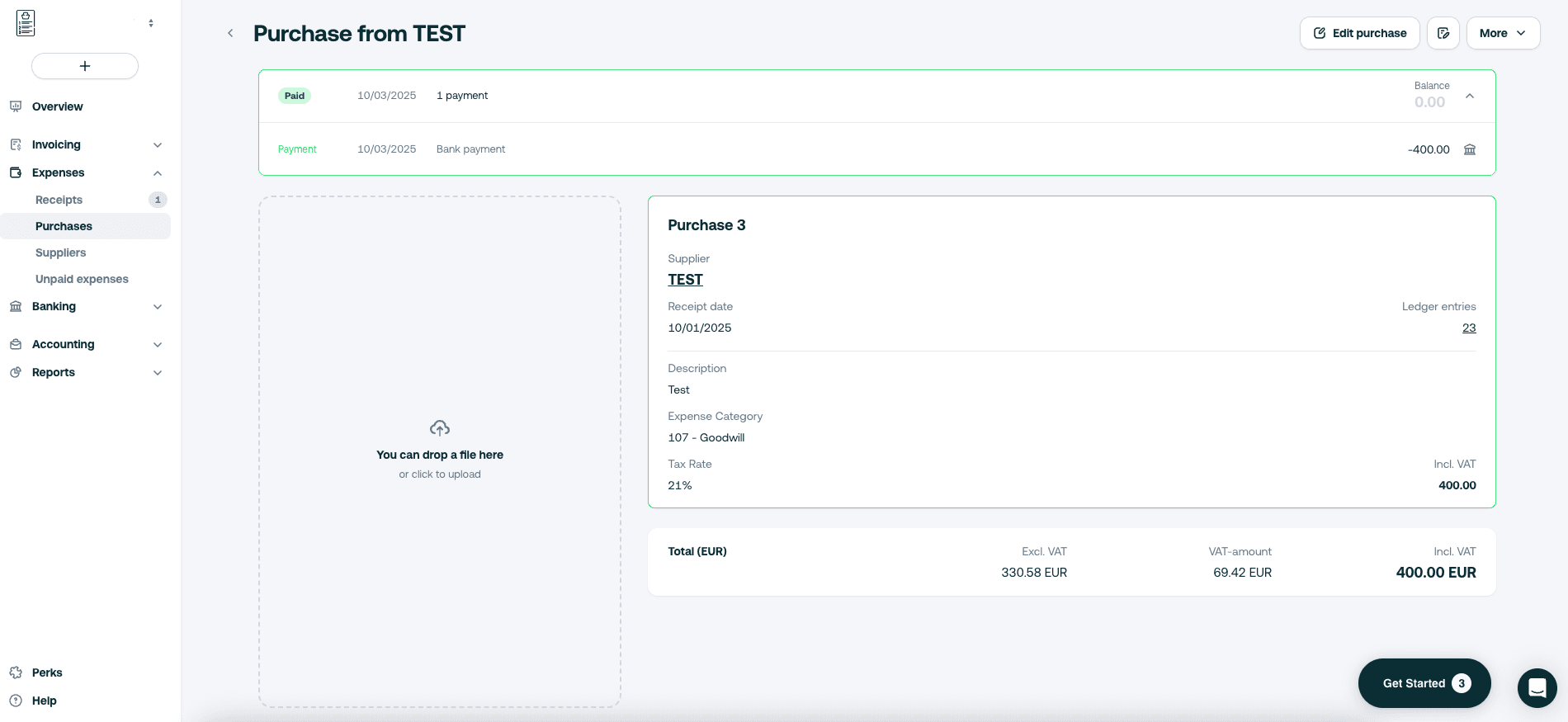
  • First, select the bill.
  • Click on the small bank icon
Screen 1 - Change the payment date on a Bill .png
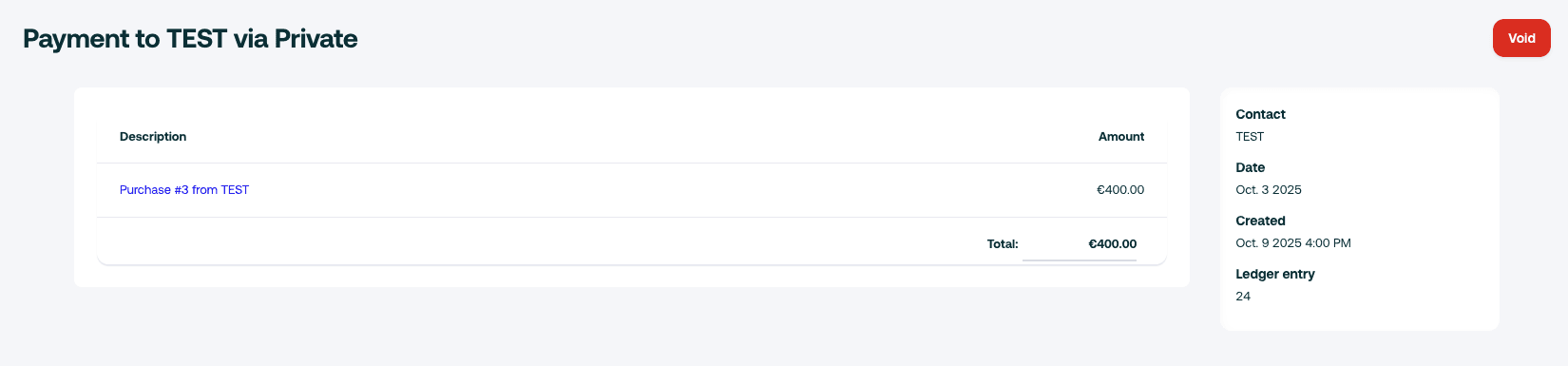
  • Click on the red void button
Screen 2 - Change the payment date on a Bill .png
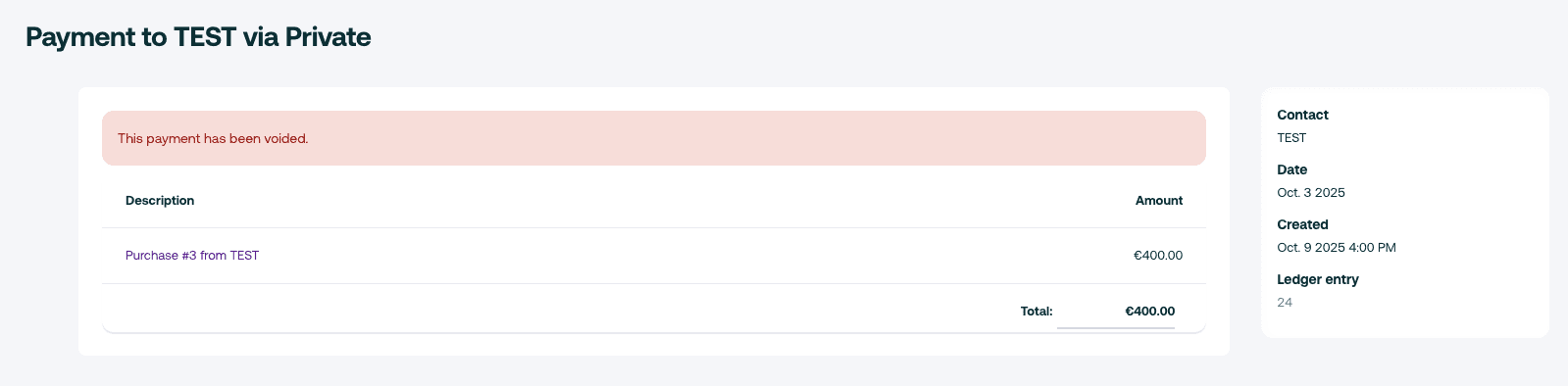
  • Then, click on Yes, void the payment
Screen 3 - Change the payment date on a Bill .png

A confirmation will be then showing up in red. Go back to your bill (which is linked under the description).
 

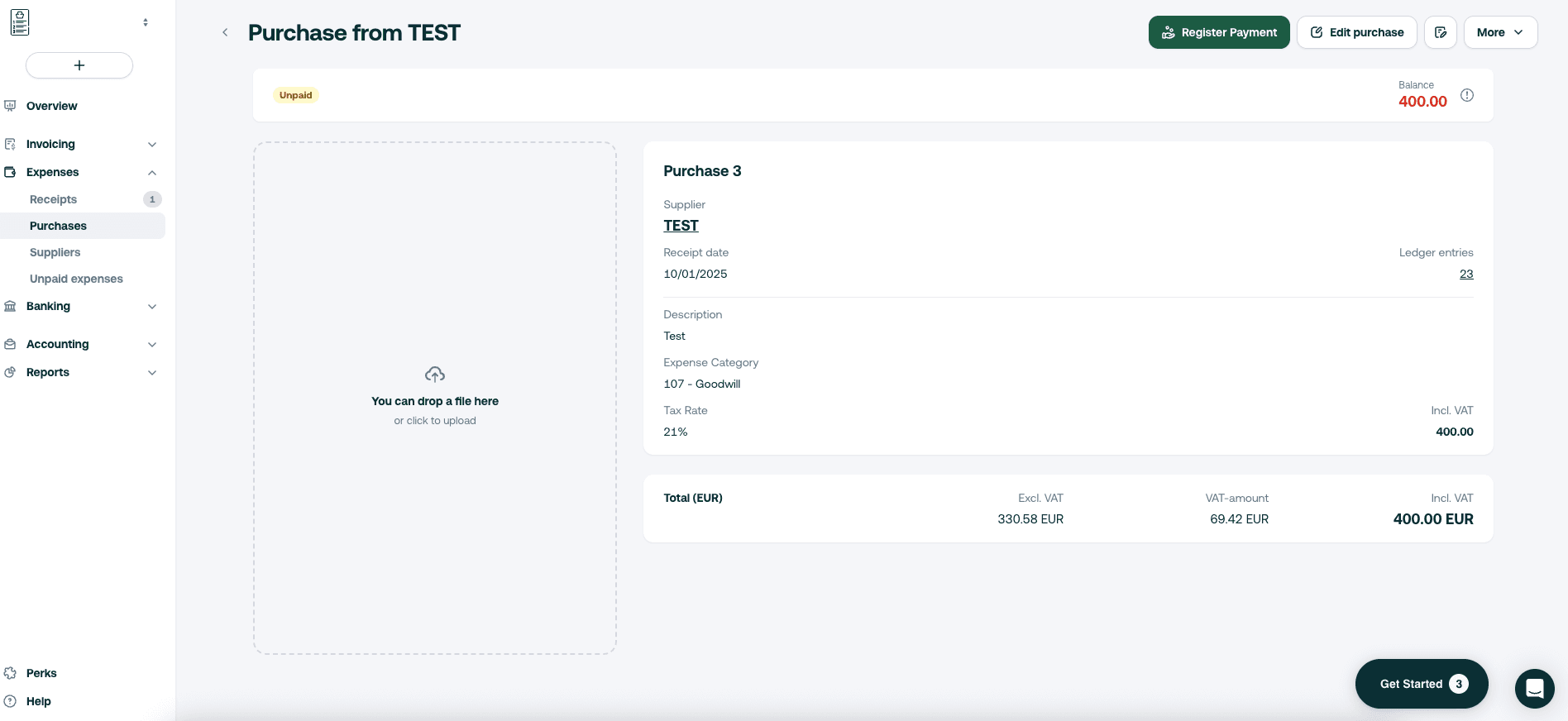
  • Press register payment
Screen 4 - Change the payment date on a Bill .png
  • Insert the new date
  • Click on Register

You have now changed the payment date on the invoice.

Was this article helpful
Shine Logo

Shine is the financial copilot, simplifying daily business operations. The best of invoicing and accounting in one platform; built for small businesses.

Terms of ServicePrivacy PolicyCookie PolicyData Processing Agreement

© Shine 2026